Tax Mappings
For tax mappings, please login to your Xero account and follow the steps to set Tax rates
NB: After setting the tax rates in Xero, they will sync automatically to your Fiscal Harmony Account.
Steps
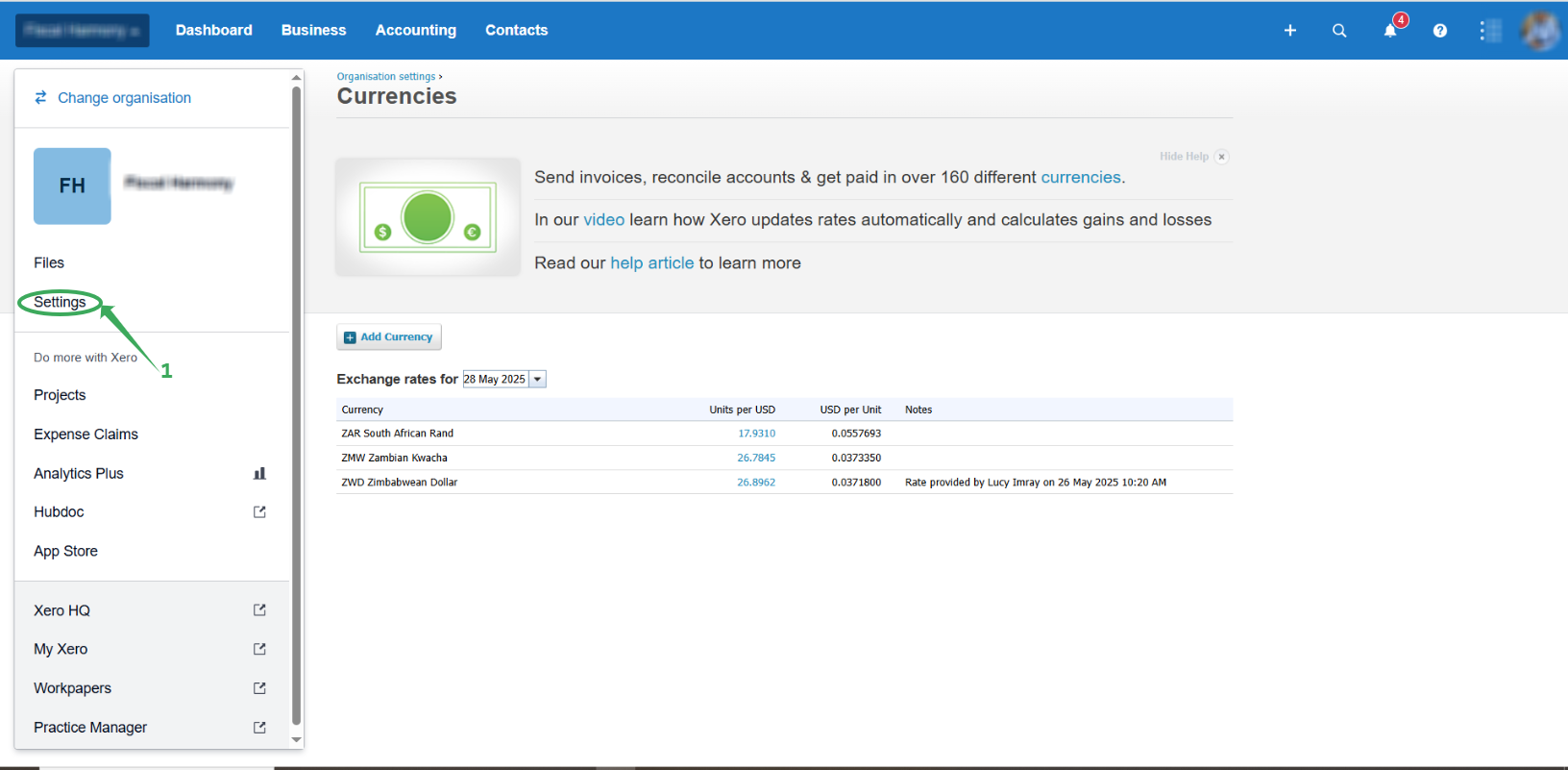
Go to settings
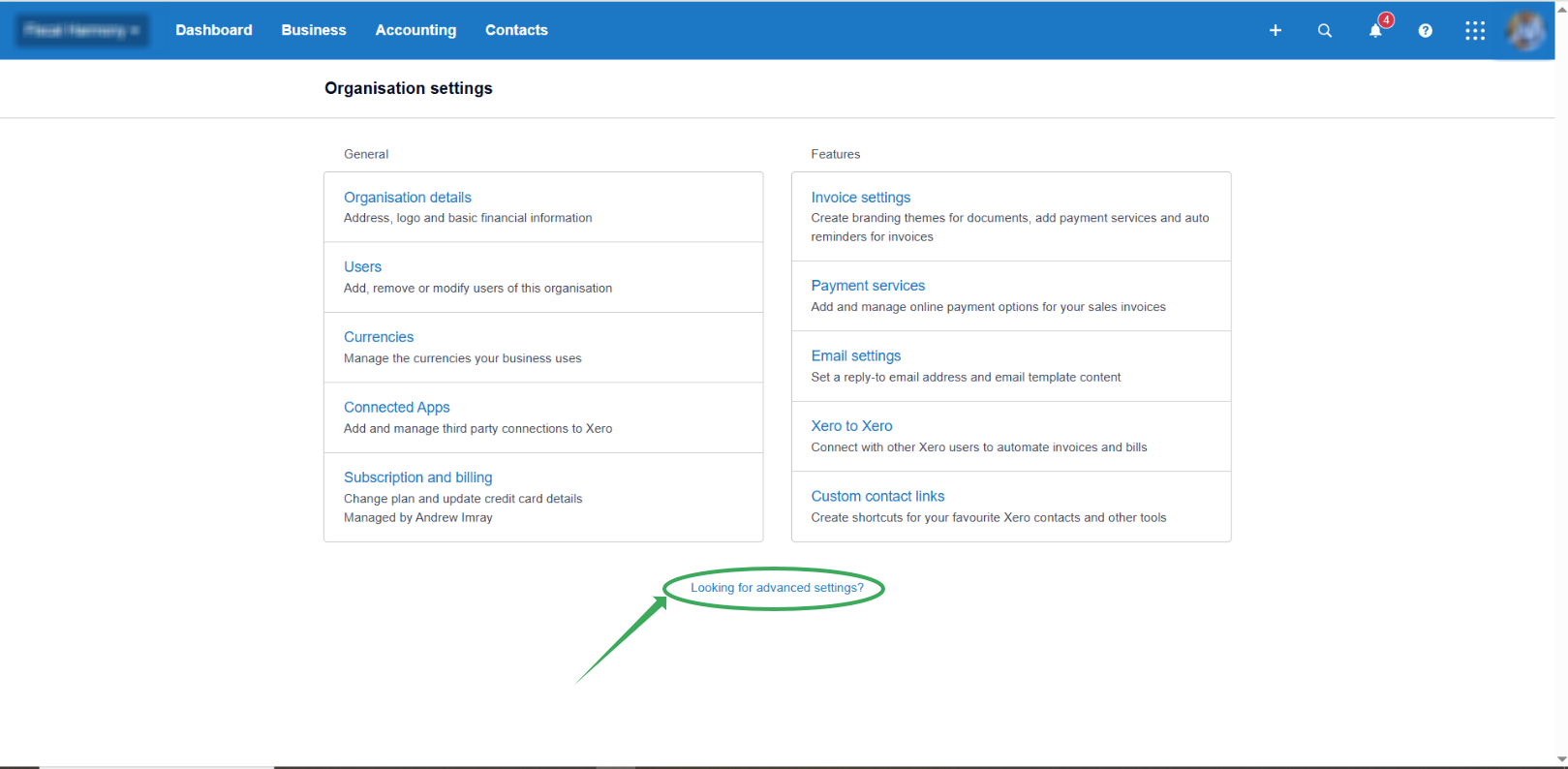
Click "Looking for advanced settings?"
You will be redirected to the page with a number of options then you select "Tax rates"
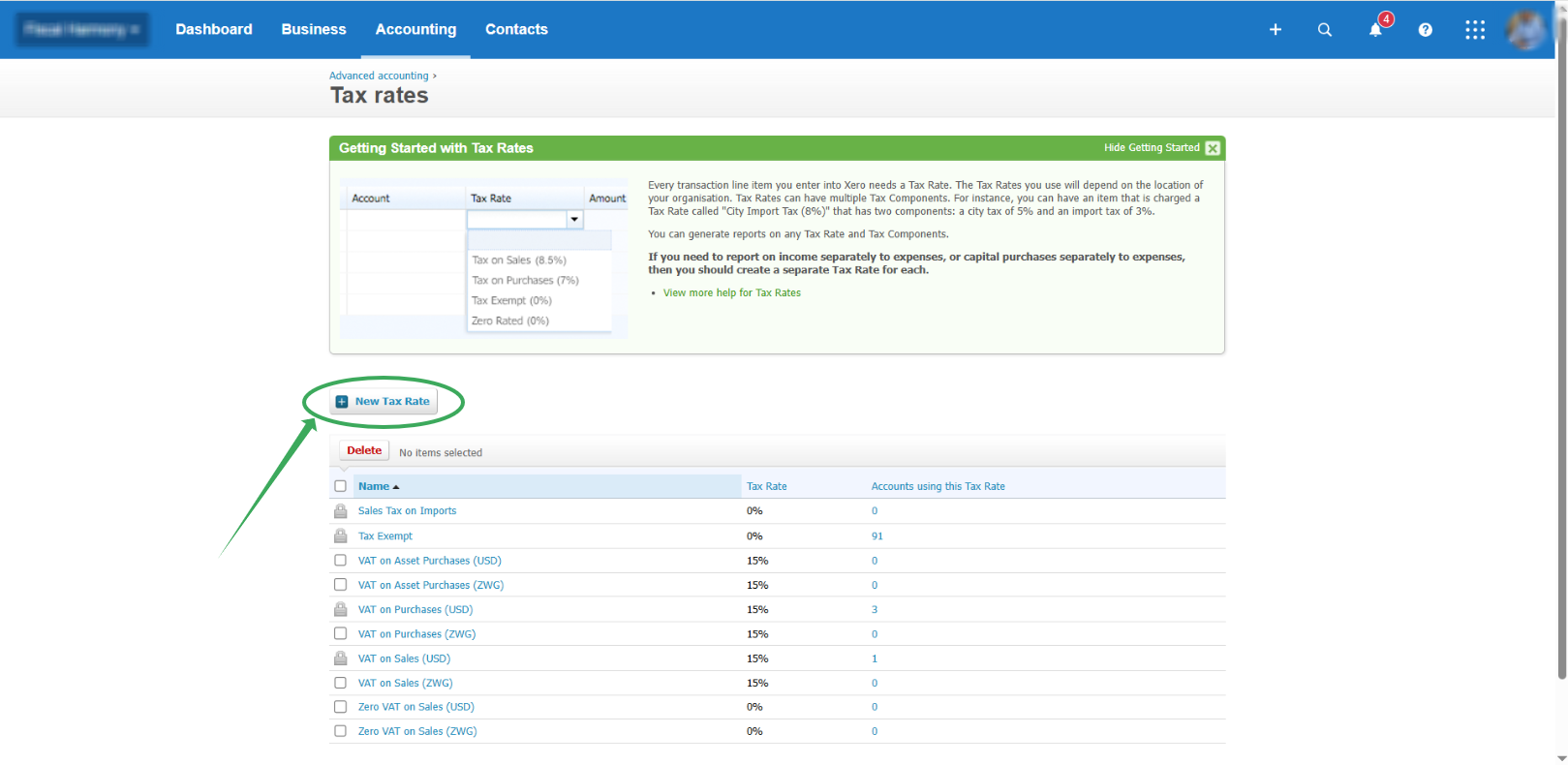
Click "New Tax Rate" to add your tax rates.
Currency Mappings
For currency mappings in Xero, please login to your Xero account and follow the steps to set currencies.
NB: After setting the Currencies in Xero, they will sync automatically to your Fiscal Harmony Account.
Steps
Navigate to Settings.
Click "Currencies".
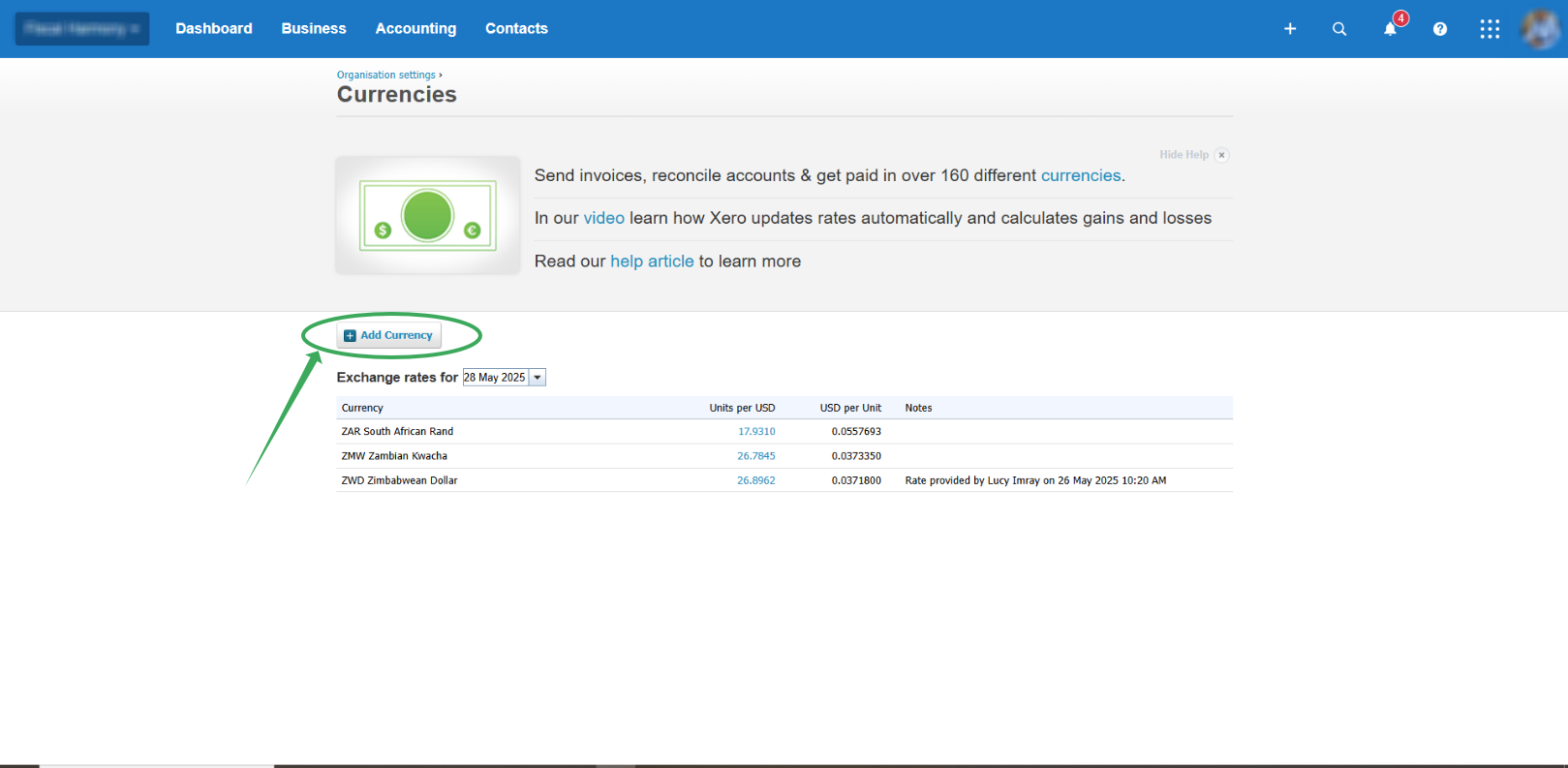
Click "Add Currency" to add your currencies.
Adding Products
To add items in Xero, please login to your Xero account and follow the steps below to add items in your Fiscal Harmony Account
NB: After adding items in Xero, they will sync automatically to your Fiscal Harmony Account.
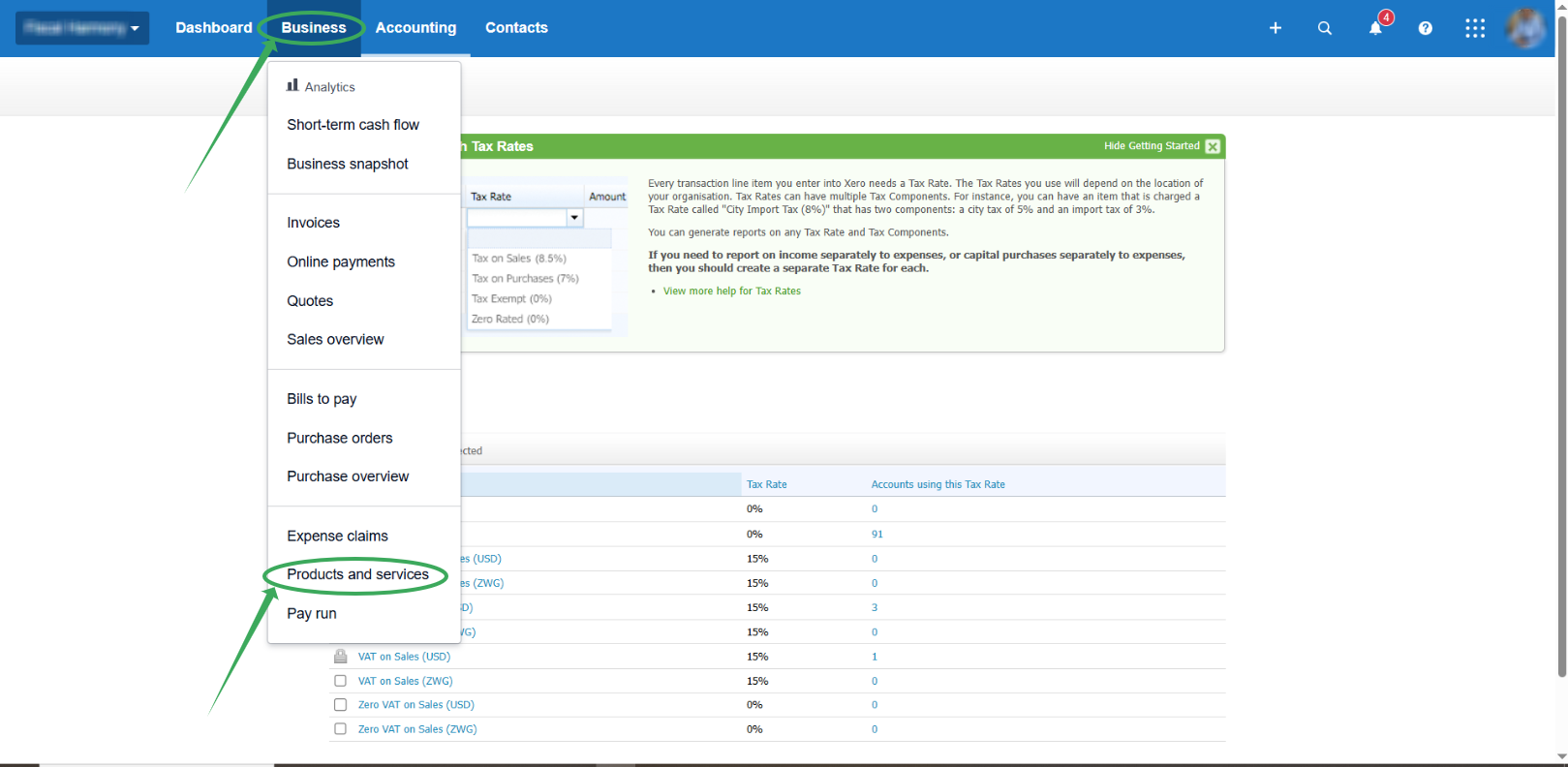
Click "Products and Services" under Business, and follow the steps there to add your products to your Xero account.
Checking Taxes and Currencies in Fiscal Harmony Account
Mapped Taxes
To check your mapped taxes, Login into your Fiscal Harmony account.
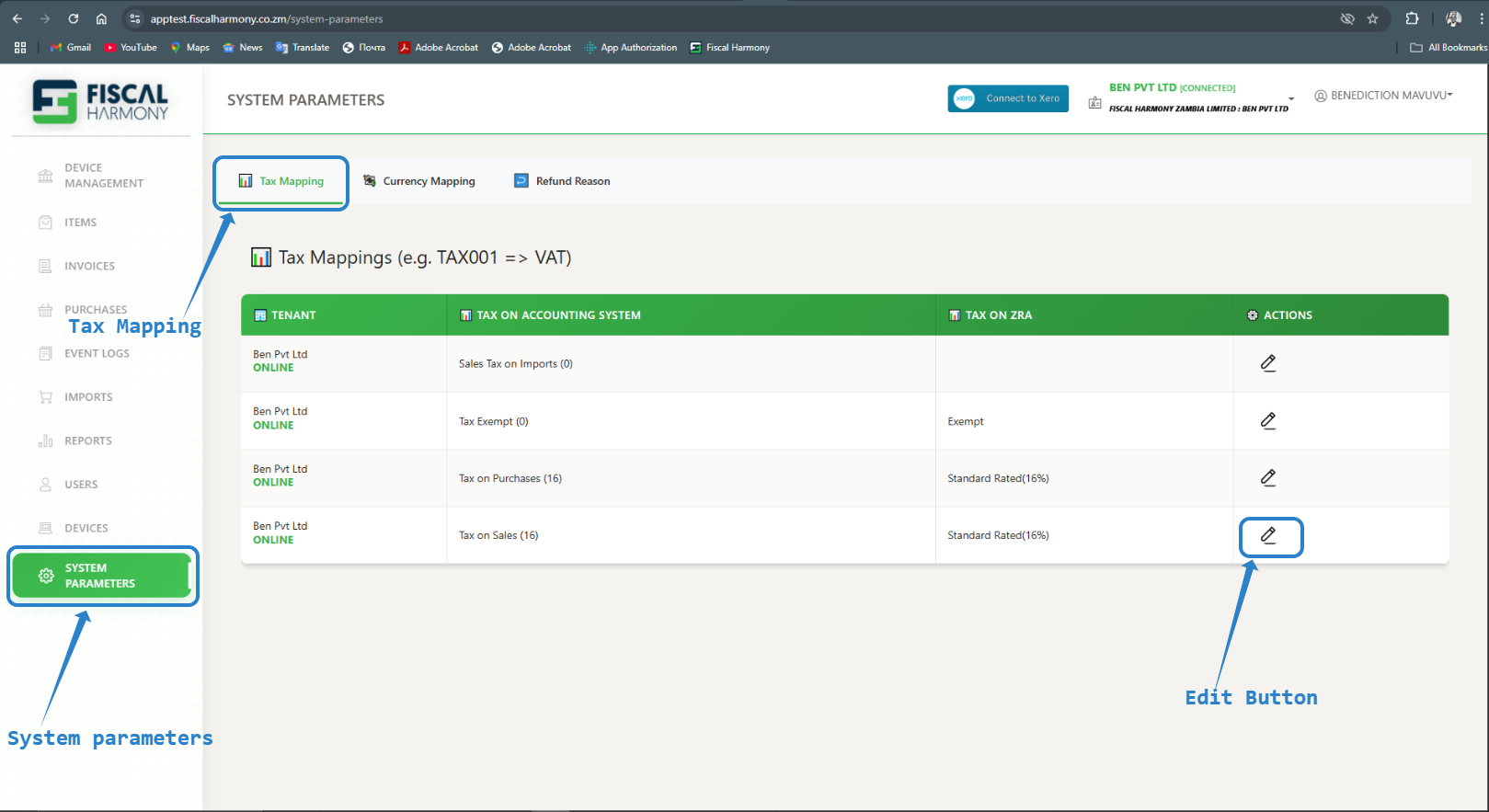
Navigate to "System Parameters" and select "Tax mapping"
To map taxes in your accounting system to ZRA, click the edit button.
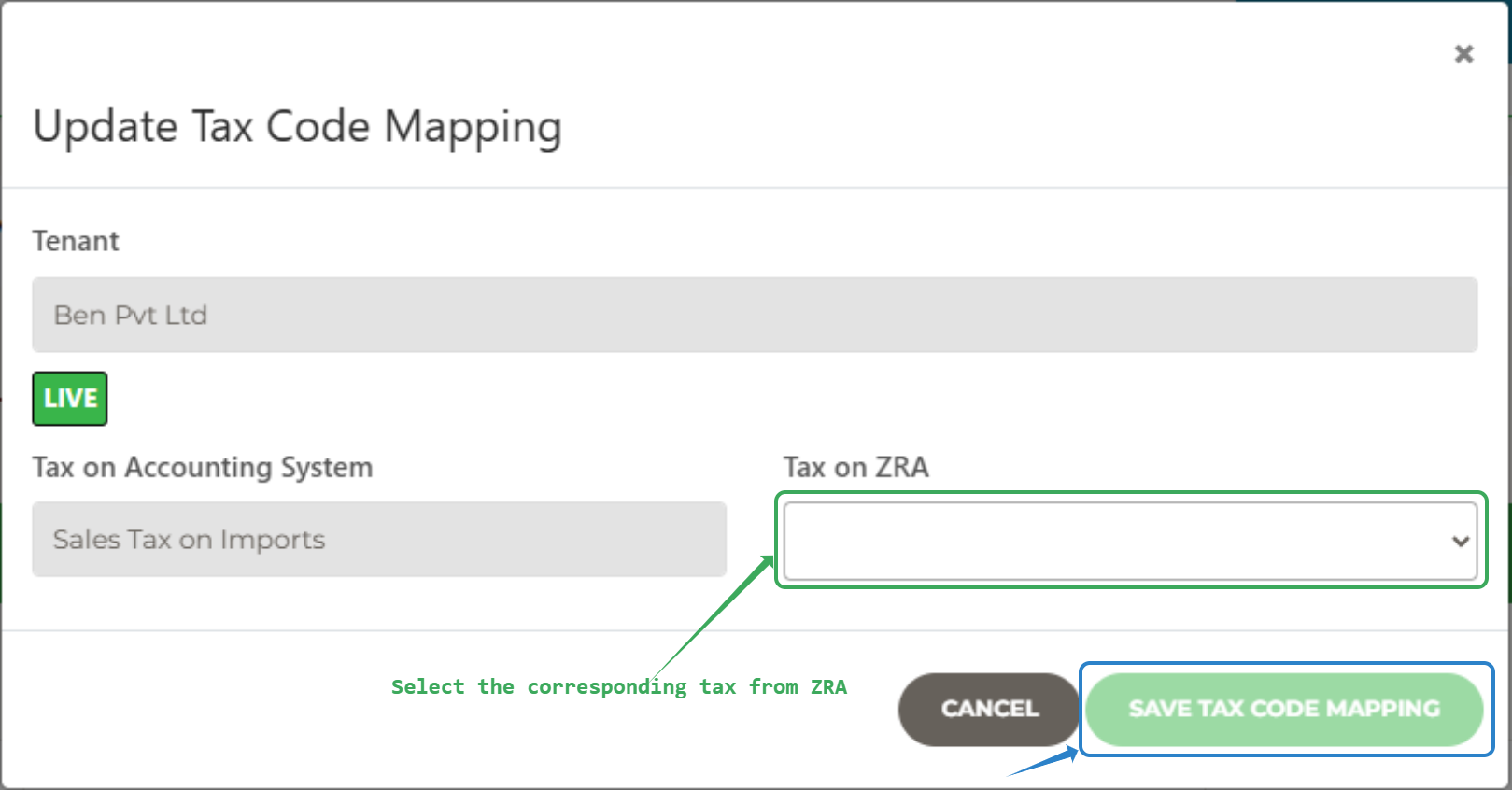
Select the corresponding Tax Rate from ZRA and click the "Save tax code button" to save changes.
NB: Please note that all the tax rates available in your Xero account will sync automatically to your fiscal Harmony account as shown above.
Mapped Currencies
To check your mapped currencies, Login into your Fiscal Harmony account.
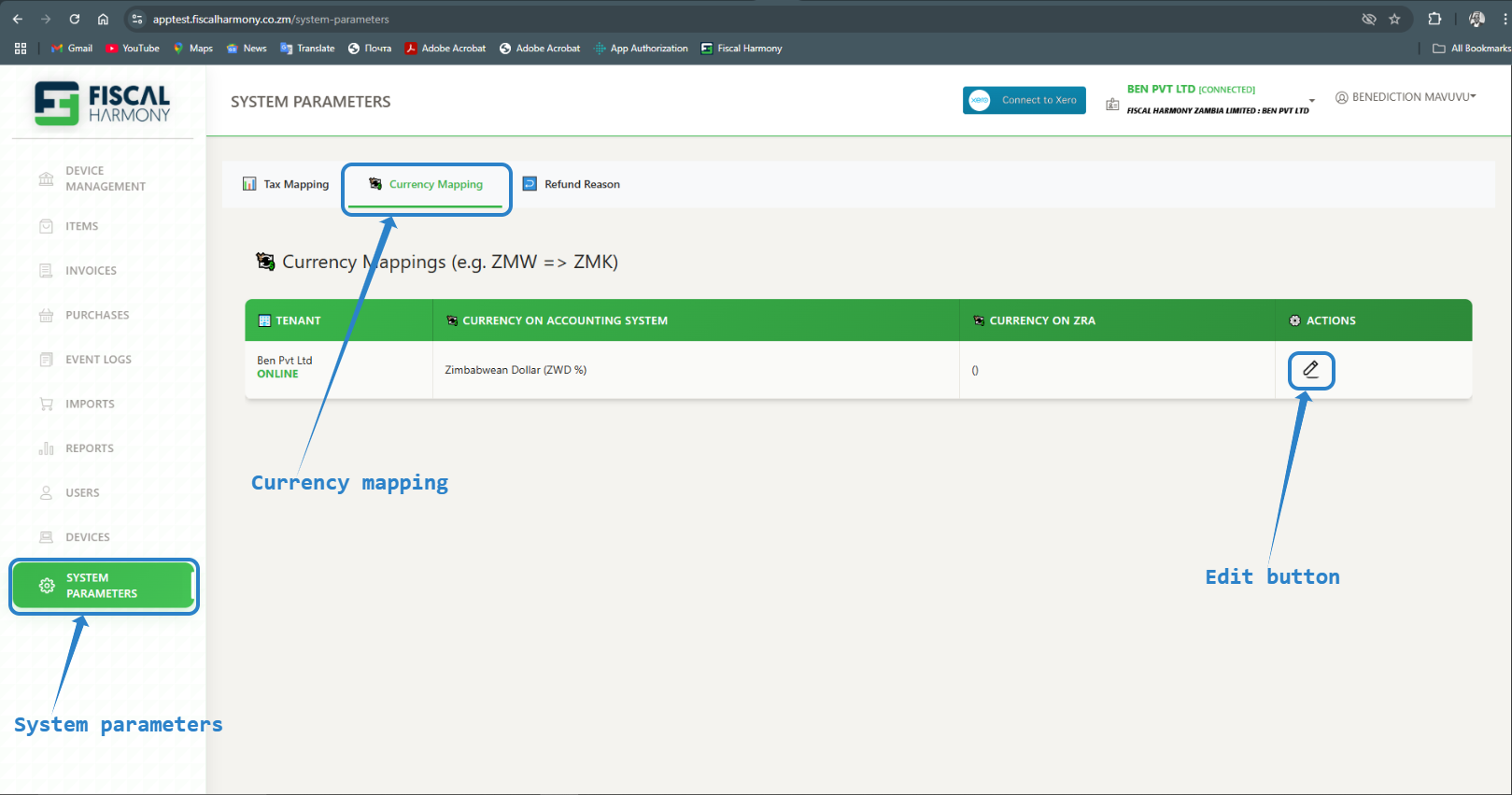
Navigate to "System parameters" and select "Currency mapping"
To map currencies in your accounting system to ZRA, click the edit button.
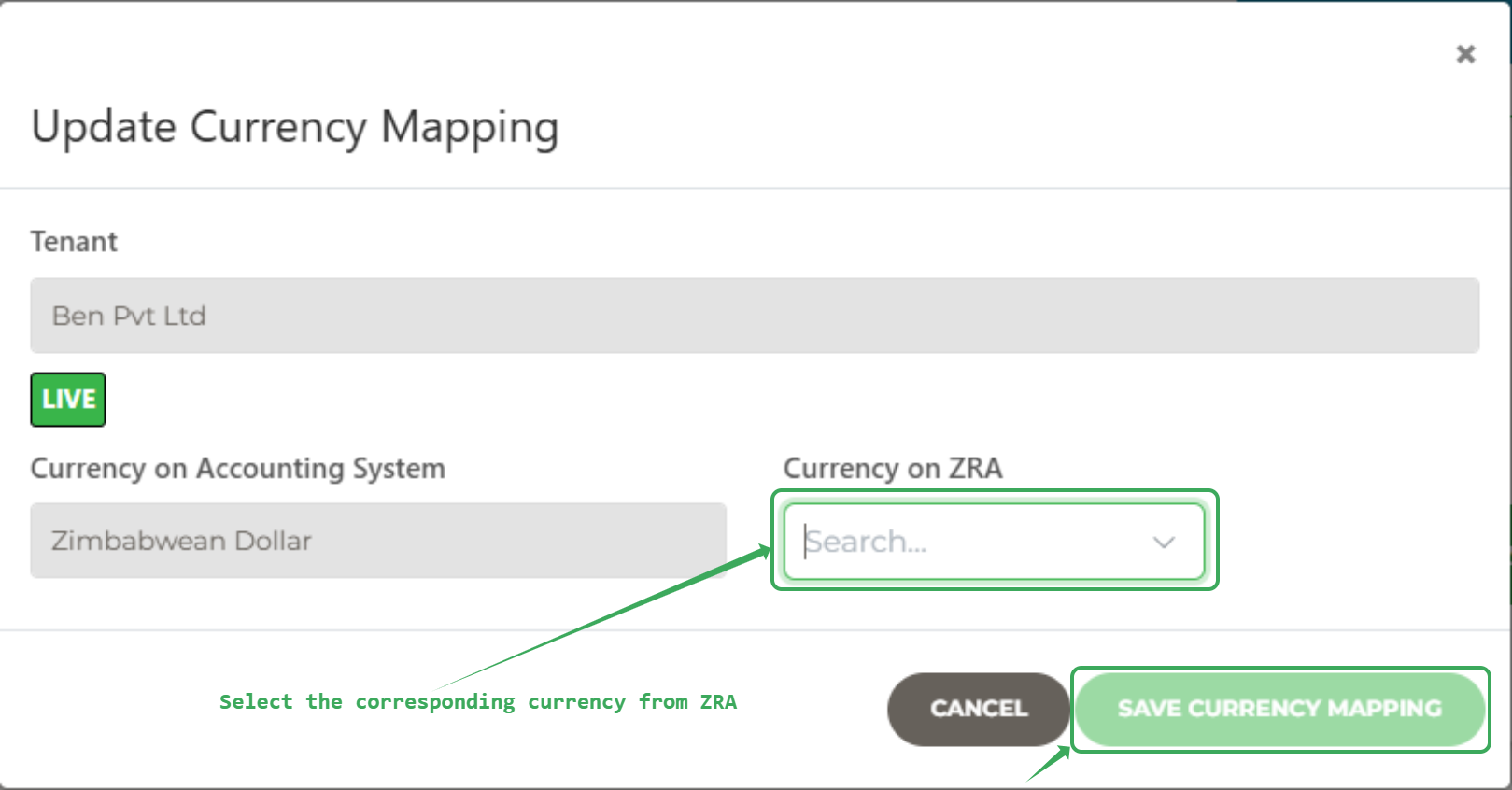
Select the corresponding Currency from ZRA and click the "Save currency mapping button" to save changes.
NB: Please note that all the currencies available in your Xero account will be automatically synced to your fiscal Harmony account as shown above
Synced Items in Fiscal Harmony Account
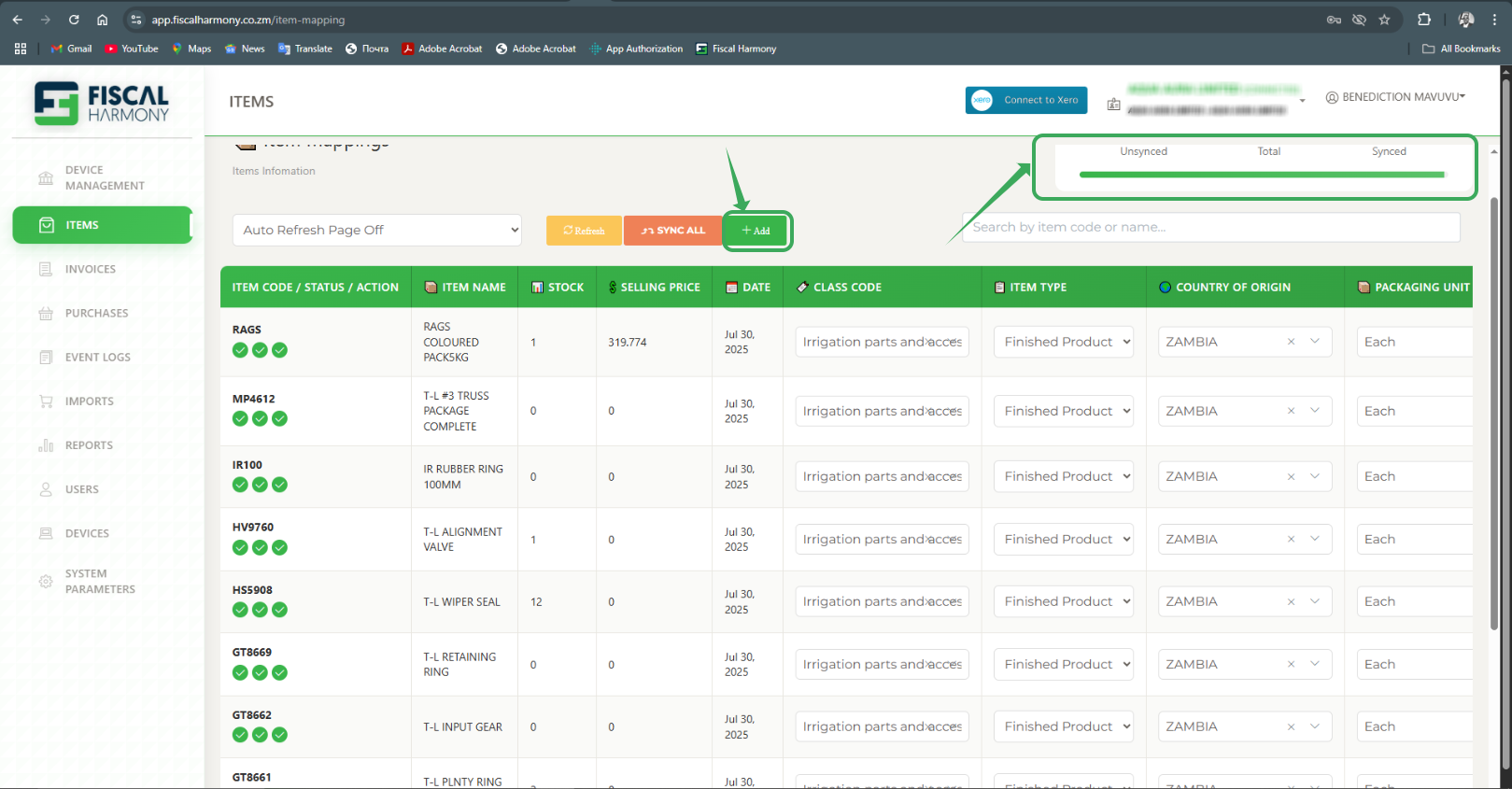
Navigate to "Items"
NB: Please note that all the products available in your Xero account, they will come to your fiscal Harmony account as shown above
Syncing items into your fiscal harmony Account
Please be advised that you are able to fiscalise invoices using synced items only.
Please note that you can also add item through the fiscal Harmony Account by clicking the "Add" button and you must enter all the mandatory fields to sync the item.
You must then click the "sync" button to sync you item with ZRA.
The statics for your synced and not synced items will appear on the top Right Corner.
Was this article helpful?
That’s Great!
Thank you for your feedback
Sorry! We couldn't be helpful
Thank you for your feedback
Feedback sent
We appreciate your effort and will try to fix the article