How To Process a Credit Note
A credit note is issued to correct invoice errors, handle returns or cancellations and reduce the amount a customer owes. It ensures accurate records, improves customer satisfaction, and maintains legal and tax compliance. The steps below demonstrate how to process a credit note with Fiscal Harmony and XERO integration
Step 1
LOCATING THE INVOICE TO APPLY CREDIT
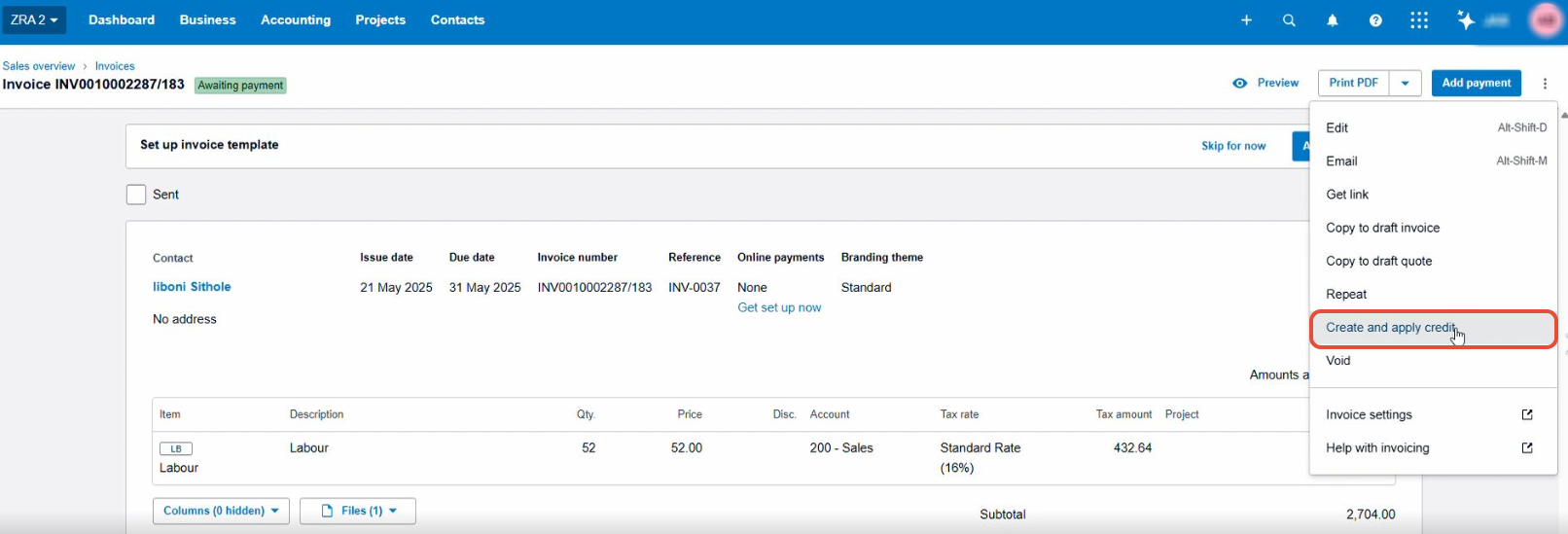
- Go to the Sales section
- Business > Invoices > Locate the original invoice
- Find the invoice or bill the credit note will relate to.
- Click the three dots in the right corner
- click "create and apply credit"
STEP 2
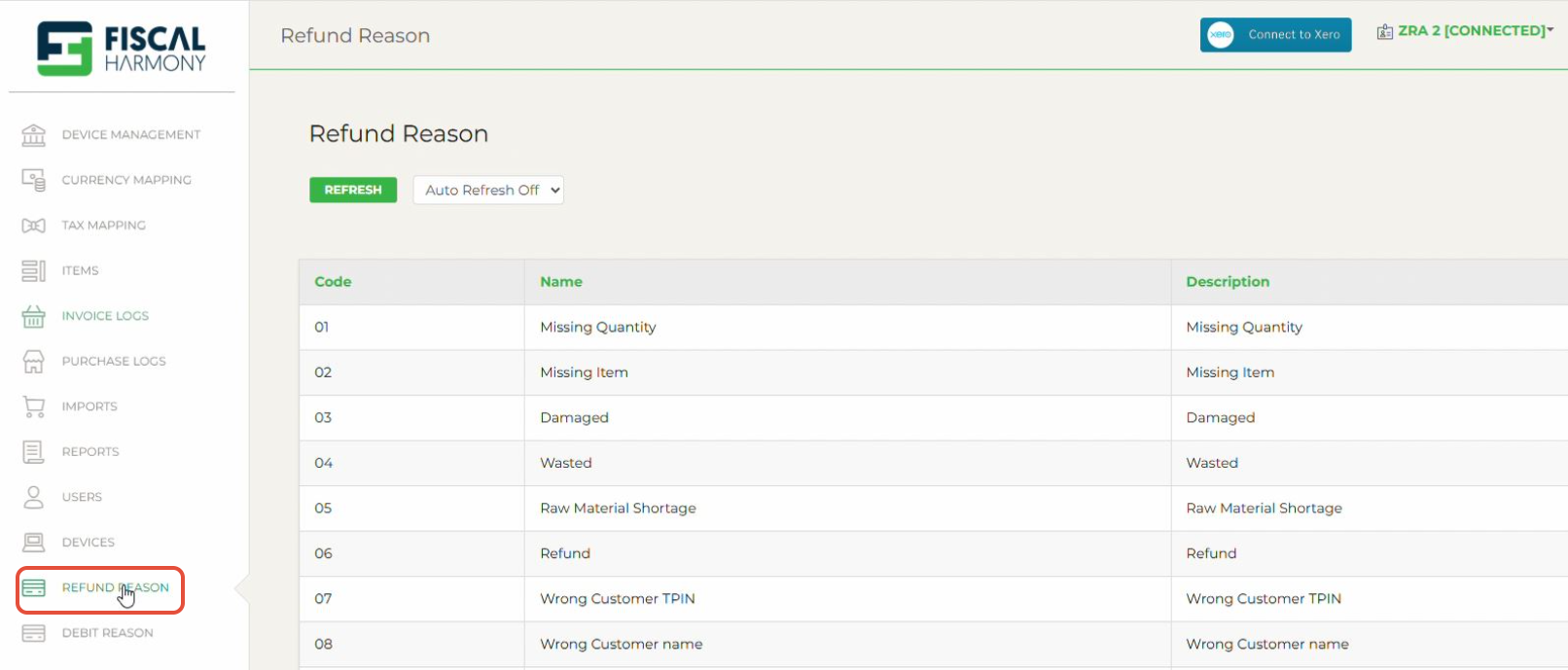
VALIDATE REASON FOR CREDIT NOTE
Log in to the Fiscal Harmony Portal
Click on "Invoice Logs" in the menu
Find and select the invoice for which you want to issue a credit note
Review the invoice and identify the reason for issuing a credit note
STEP 3
APPROVING THE CREDIT NOTE
- Click approve to finalize the credit note

STEP 4
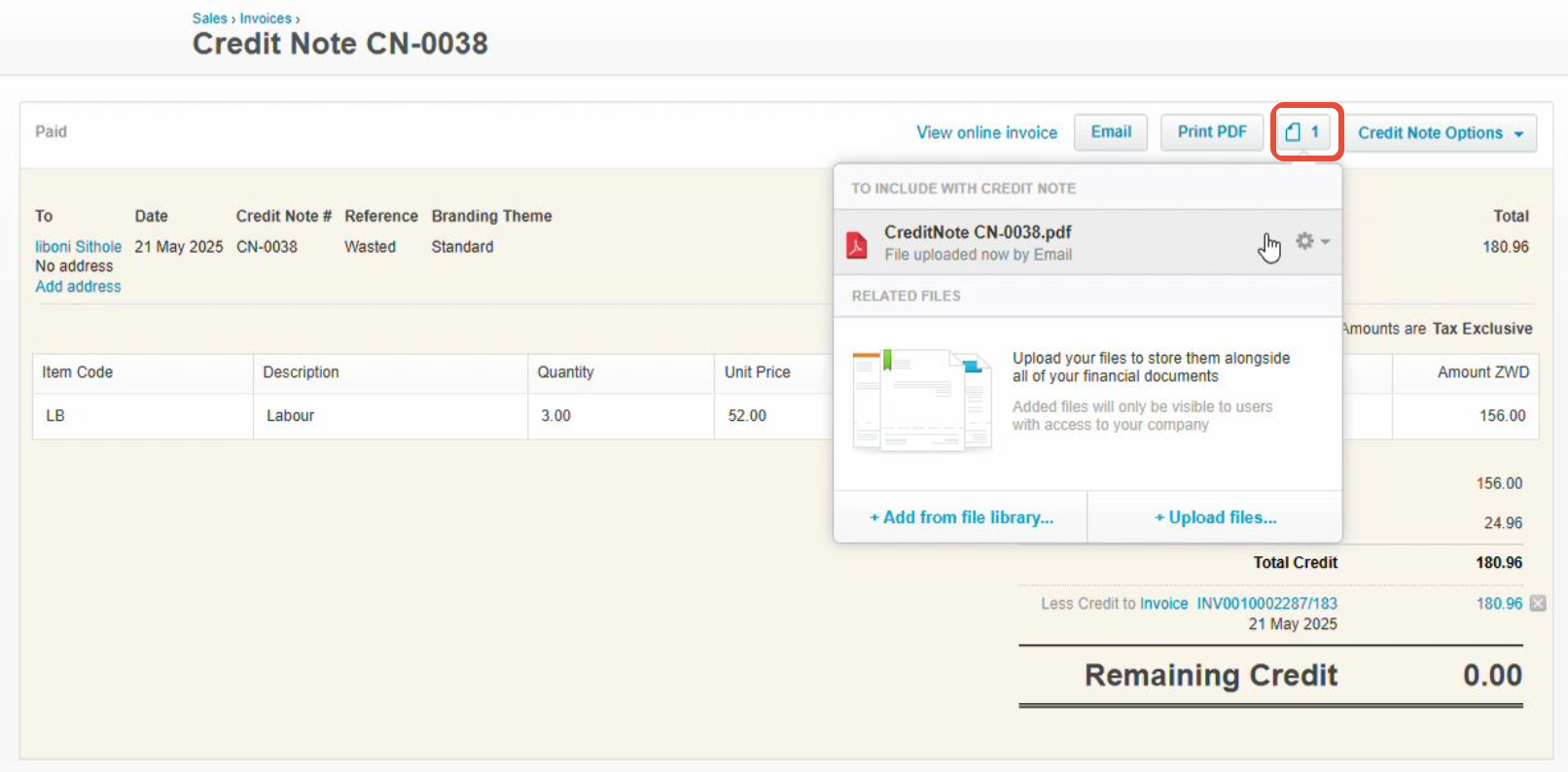
VIEWING THE FISCALIZED CREDIT NOTE
- Locate and open the credit note
- Check to the top right corner of the credit note dashboard, second option.
- To view the attached file, click the file icon
Was this article helpful?
That’s Great!
Thank you for your feedback
Sorry! We couldn't be helpful
Thank you for your feedback
Feedback sent
We appreciate your effort and will try to fix the article